Built-in BPA Rules
Overview
Tabular Editor 3 Enterprise Edition includes 27 built-in best practice rules. These rules cover common issues in semantic model development and are updated automatically with each release.
Unlike custom rules stored in JSON files, built-in rules:
- Are integrated directly into the application
- Update automatically with new releases
- Link to knowledge base documentation
- Are read-only to ensure consistency across teams
- Work immediately without configuration
Key Features
Rule Categories
The 27 built-in rules cover four areas:
- Error Prevention: Invalid characters, missing expressions, data type mismatches
- Performance: Relationships, partitions, aggregations
- Formatting: Format strings, visibility, naming conventions
- Maintenance: Descriptions, calculation groups, unused objects
Global and Per-Rule Control
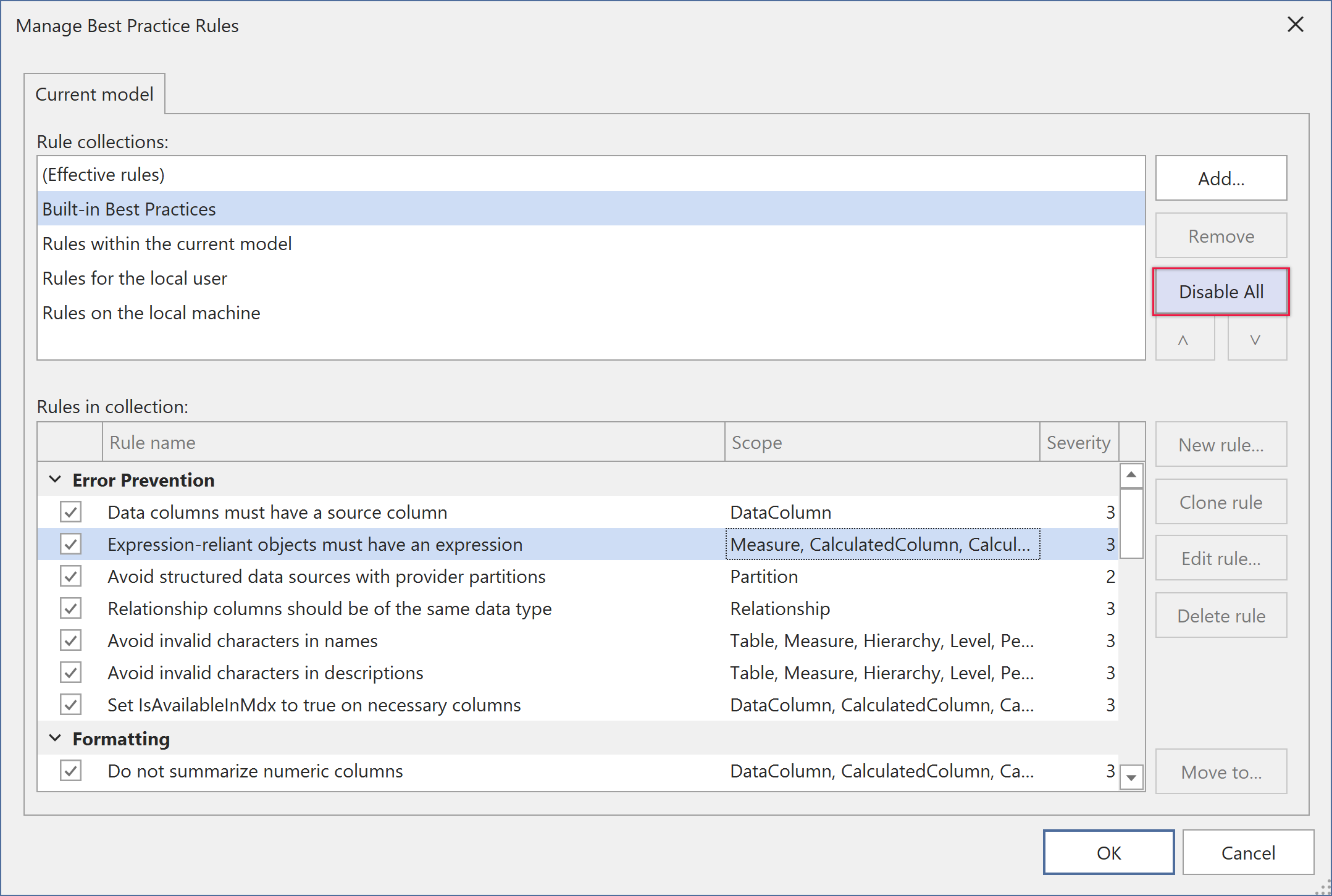 You can enable or disable built-in rules globally or individually. Settings persist across sessions and work independently from your custom rules.
To manage built-in rules:
- Go to Tools > Preferences > Best Practice Analyzer
- Find the Built-in Rules section
- Toggle Enable Built-in Rules to turn the entire collection on or off
- Use the BPA Manager to enable or disable individual rules
First-Run Notification
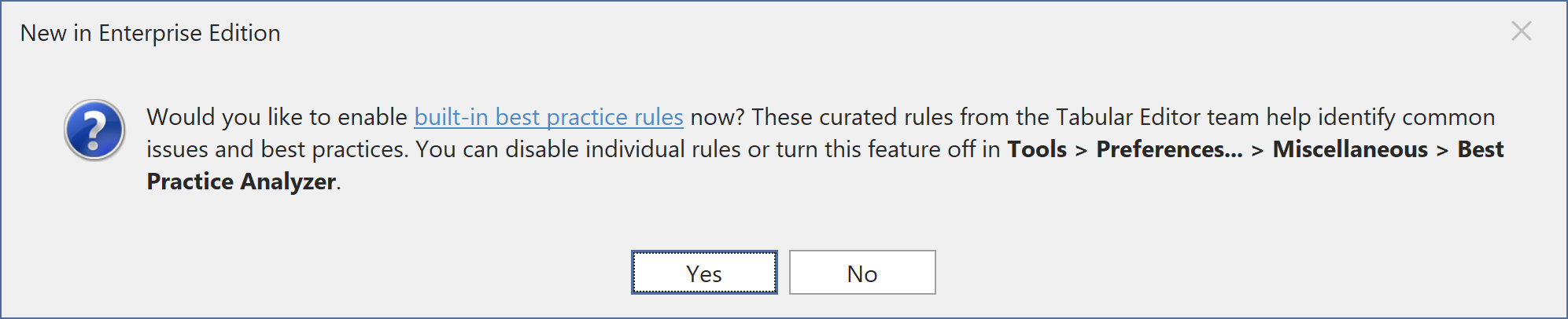
The first time you open a model after upgrading to a version with built-in rules, you'll see a notification explaining the feature with a link to preferences. This notification only appears once.
Knowledge Base Integration
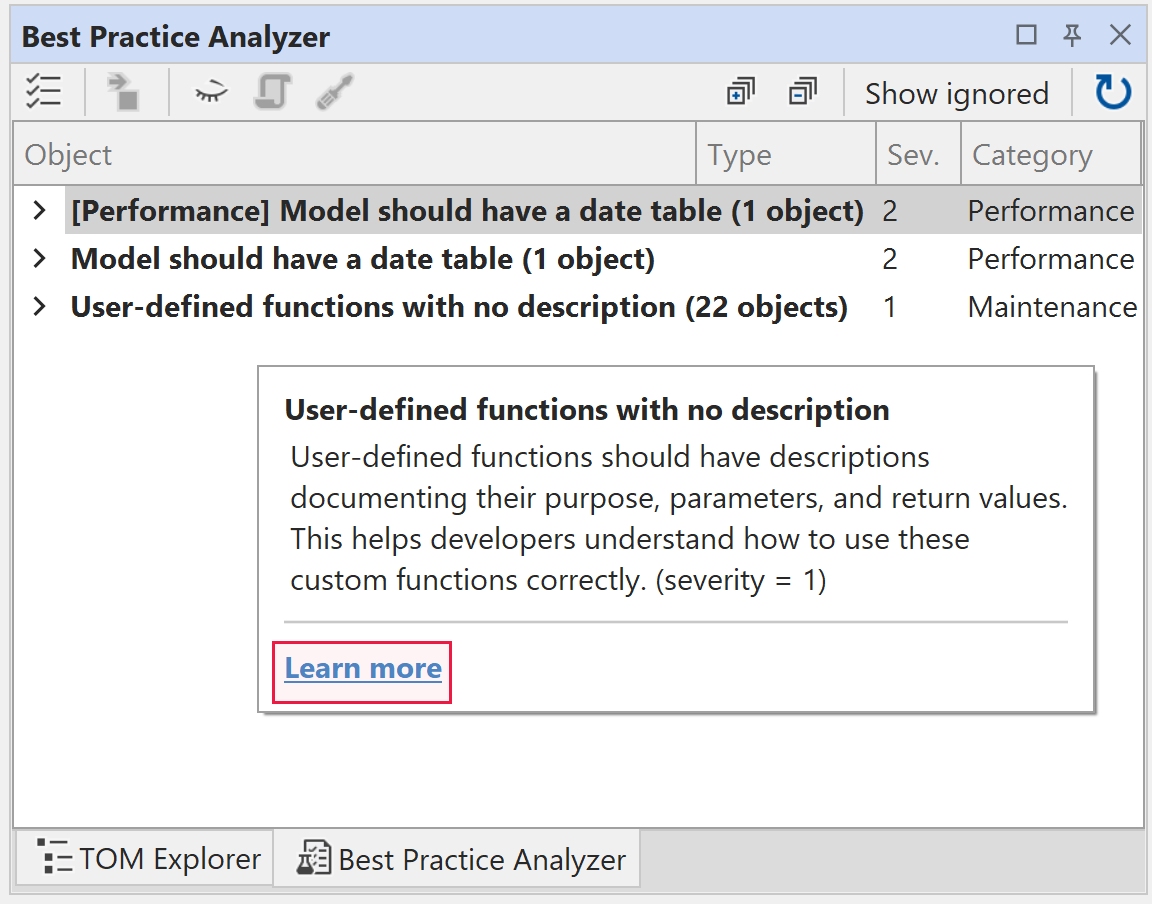
Every built-in rule links to a knowledge base article through the KnowledgeBaseArticle property. Each article explains what the rule checks, why it matters, and how to fix violations.
To view documentation, select a rule in the Best Practice Analyzer window.
Read-Only Protection
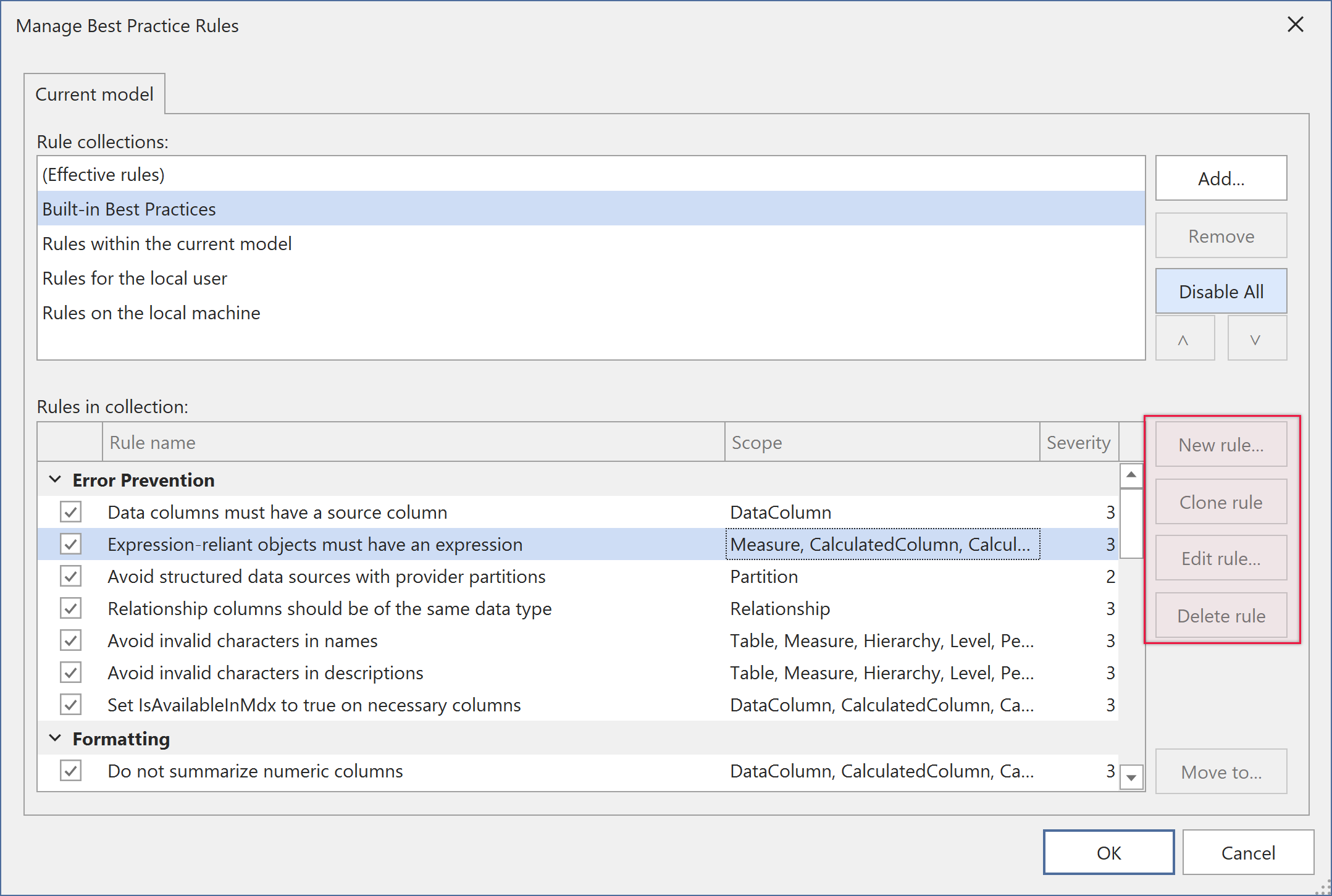
Built-in rules can't be edited, cloned, or deleted. This ensures all users have the same rule definitions. You can disable individual rules, but the rule definitions themselves remain unchanged.
ID Collision Prevention
Built-in rules use reserved ID prefixes. When you create a custom rule, Tabular Editor validates that your ID doesn't conflict with built-in rules and shows an error if it does.
Built-in Rules Catalog
The initial release includes the following rules:
Error Prevention Rules
- Avoid Invalid Characters in Object Names
- Avoid Invalid Characters in Descriptions
- Expression Required for Calculated Objects
- Data Column Must Have Source
- Relationship Columns Must Have Same Data Type
- Avoid Provider Partitions with Structured Data Sources
Performance Rules
- Many-to-Many Relationships Should Use Single Direction
- Hide Foreign Key Columns
- Set SummarizeBy to None for Numeric Columns
- Remove Auto Date Tables
- Remove Unused Data Sources
Formatting Rules
- Provide Format String for Measures
- Provide Format String for Numeric and Date Columns
- Visible Objects Should Have Descriptions
- Trim Object Names
- Date Table Should Exist
Maintenance Rules
- Calculation Groups Should Contain Items
- Perspectives Should Contain Objects
- Use Latest Power BI Compatibility Level
Working with Built-in and Custom Rules
Built-in and custom rules work side by side:
| Feature | Built-in Rules | Custom Rules |
|---|---|---|
| Storage | Hardcoded in application | JSON files or model annotations |
| Updates | Automatic with releases | Manual editing required |
| Modification | Read-only | Fully editable |
| Documentation | Integrated KB articles | User-provided descriptions |
| Availability | Enterprise Edition only | All editions |
| Sharing | Consistent across teams | Requires manual distribution |
Recommended Workflow
- Enable built-in rules for immediate coverage
- Review violations and apply fixes
- Disable rules that don't apply to your conventions
- Add custom rules for organization-specific requirements
- Use the "Ignore" feature for intentional violations
Best Practices
Onboarding Teams
When rolling out built-in rules to your team:
- Start with all rules enabled to establish a baseline
- Review violations together and agree on which rules apply
- Document why specific rules are disabled
- Add custom rules for organization-specific requirements
Model Maintenance
- Run BPA before committing changes to version control
- Fix high-severity violations immediately
- Review medium and low-severity issues regularly
- Use automatic fixes where available
Custom Rules
- Don't duplicate built-in rule functionality
- Use different ID prefixes to avoid conflicts
- Document your custom rules
- Share rule collections within your team
Troubleshooting
Built-in Rules Not Appearing
If built-in rules don't show in the BPA window:
- Check that you're using Tabular Editor 3 Enterprise Edition
- Verify that built-in rules are enabled in Tools > Preferences > Best Practice Analyzer
- Restart Tabular Editor if you just changed preferences
- Confirm your license is active
Cannot Modify Built-in Rule
This is expected. Built-in rules are read-only. If you need different logic, create a custom rule with your expression and disable the corresponding built-in rule.
ID Collision Error
Built-in rules reserve certain ID prefixes. Choose a different ID that doesn't start with TE3_BUILT_IN.
Compatibility
- Requires Tabular Editor 3.24.0 or later
- Enterprise Edition only
- Works with all compatibility levels (1200+)